Wednesday, June 1, 2011

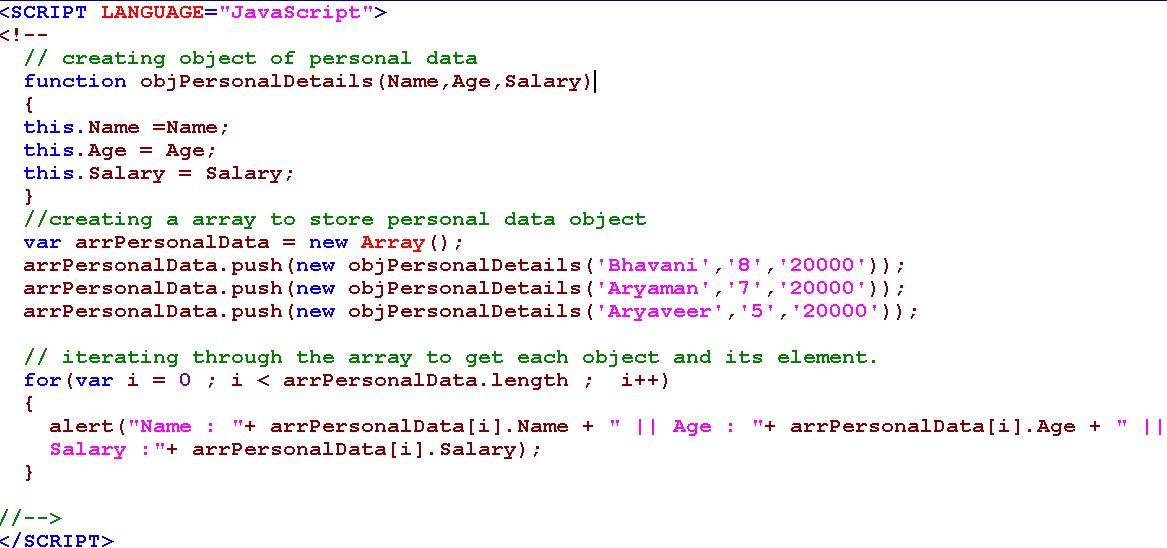
How to create user defined javascript object

As all the computer languages are moving towards the Object Oriented approach. Javascript is also having one of the most powerful feature of creating objects in javascript. I came across many developers who say javascript is just about the validation, but in my view , this is one the main component of developing web based application. I am not sure why this language is termed as validation language as well by many, but when you go deep into this language , this is one of the best language to handle to browser based application and formatting the data before getting displayed on the User Interface. Keeping this in mind, i am sharing one of best feature of javascript of creating user defined objects. This feature can be used at major places such as displaying data in the tabular format, creating a object of your own choice to parse , display or manipulate in any manner you like.......here is the sample code for the same.....


Click on the image if unable to see it clearly.

Tuesday, October 6, 2009

What is HTML ?

The full name of HTML is Hyper Text Markup Language, majorly used in static developing Web Pages. Static web pages means pages where the content of the page is fixed means any article, definition etc, In other words, non-interactive data. This HTML code is merged with some other client side scripting such as php,  javascript, vb script etc and generated dynamic content to web pages.

Sample HTMLPage

<HTML>

<BODY>

Hello, How are you Subu!!!

</BODY>

</HTML>

del.icio.us Tags:

Sunday, March 8, 2009

Java example to list all the items from the Folder/Location

As i always believe, Java is very powerfull language, providing us many different ways to use a specific task, here is one of the ways to list all the files or folders within the Folder location through the java program.
FolderFileList.java
--------------------
/* File : FolderFileList.java Purpose: Dumps all the Files and Folders from the location provided
Author : Anaparthi Subrahmanyam
Published: 2009-03-08
Usage Notification: Author doesnt own responsibility of any loss of data, responsibility for misuse or loss of any nature if this code is used. If possible, please provide link to this webpage
*/
import java.io.File;
public class FolderFileList
{
public static void main(String[] args)
{
String name = args[0];
File f = new File(name);
String fState = null;
try
{
if(!f.exists())
{
throw new Exception("Invalid location!!!");
}
if(f.isDirectory())
{
File[] listF = f.listFiles();
for (int i=0 ;i <>
{
fState = listF[i].isDirectory() ? "Folder":"File";
System.out.println(listF[i].getName()+"\t\t\t"+" === > "+fState);
}
}
else
{
System.out.println("Location provided is not a file directory.");
}
} catch (Exception e) { e.printStackTrace(); }
}
}
---------------------------

Provide the location as a command line argument as mentioned below(dont forget to compile):
prompt> java FolderFileList c:\folder_name

Monday, February 16, 2009

How to verify, input location is a File or Directory in Java

Java provides a Class called File, which is under the package java.io , contains all the sufficient methods(functions), which can be used to extract almost all the important properties of the Directory or a File. In the below example LocationVerification.java as well, i have used java.io.File class to know whether the input provided by the user is a File or Folder i.e. Directory.

LocationVerification.java
-------------------------
/*
  File   : LocationVerification.java
  Purpose: Verifies the input location is File or a Directory 
  Author : Anaparthi Subrahmanyam 
  Published: 2009-02-16
  Usage Notification: Author doesnt own responsibility of any loss of data, responsibility for misuse or loss of any nature if this code is used. If possible, please provide link to this webpage.
*/
import java.io.File;

public class  LocationVerification
{
  public static void main(String[] args) 
  {
    String name = args[0];
    File f = new File(name);
    try
    {
      if(!f.exists())
      {
         throw new Exception("Invalid location!!!");
      }
       if(!f.isDirectory())
      {
         System.out.println("Location provided is a not a file directory, its a File");
      }
      else
      {
        System.out.println("Location provided is a file directory.");
      }

    }
    catch (Exception e)
    {
      e.printStackTrace();
    }
  }
}
---------------------------------

How to execute the above file:

1. Compile it successfully
2. Execute it with providing a command line argument such as:

cmd_prompt> java LocationVerification c:\test\sample

If the third part of the above command is file then result will show  as Location is file, if its directory then result will show you a message saying its directory.


Sunday, February 15, 2009

How to pass file as input in java program and parsing it.

There are different ways we can pass the file path as a parameter to a java file and can be parsed. One of the very good class provided by Sun is java.util.Scanner class. This class provides sufficient methods to accpet file as an input parameter and also provides methods to parse it.Here I am demonstrating you two different ways of passing file to a java program as well as parsing it.
# FileScanner.java
------------------------------
/* File : FileScanner.java
Purpose: Accepts file name as input and prints the content after parsing.
Author : Anaparthi Subrahmanyam
Published: 2009-02-15
Usage Notification: Author doesnt own responsibility of any loss of data, responsibility for misuse or loss of any nature if this code is used. If possible, please provide link to this webpage
*/
import java.util.Scanner;

import java.io.File;
public class FileScanner{
public static void main(String[] args) {
// creating an scanner object to recieve the Input
System.out.println("Please enter the complete file name including absolute path");
Scanner in = new Scanner(System.in);
// Following two variable will be used later
Scanner sn =null;
File f = null;
// accepting user input
String fname = in.next();
System.out.println("File Name Entered : " + fname);
f = new File(fname);
try
{
if(!f.exists()) throw new Exception(" File does not exists!");
// Creating scanner object using constructior Scanner(File f)
// This obj will be parsed using methods provided by the Scanner Class
sn = new Scanner(f);
// Parsing and printing untill end of line of the file provided.
while(sn.hasNext())
{
System.out.println(sn.next());
}
} catch (Exception e) { e.printStackTrace(); }
}
}
--------------------------
Compile it and just execute the class file, once the file gets started executing, it will ask for the file name . Once you entered the file name, press enter. Complete file content will be displayed on console.

The other way of using the Scanner class is as follows:
/* File : FileScanner2.java
Purpose: Accepts file name as input and prints the content after parsing.
Author : Anaparthi Subrahmanyam
Published: 2009-02-15
Usage Notification: Author doesnt own responsibility of any loss of data, responsibility for misuse or loss of any nature if this code is used. If possible, please provide link to this webpage
*/import java.util.Scanner;
import java.io.File;
public class FileScanner2{
public static void main(String[] args) {
String fname = args[0];

// Following two variable will be used later
Scanner sn =null;
File f = null;
// accepting user input
String fname = in.next();
System.out.println("File Name Entered : " + fname);
f = new File(fname);
try
{
if(!f.exists()) throw new Exception(" File does not exists!");
// Creating scanner object using constructior Scanner(File f)
// This obj will be parsed using methods provided by the Scanner Class
sn = new Scanner(f);
// Parsing and printing untill end of line of the file provided.
while(sn.hasNext())
{
System.out.println(sn.next());
}
} catch (Exception e) { e.printStackTrace(); }
}
}
--------------------------

In the above program, pass the file name while executing the java class file such as :
cmd_prompt> java FileScanner2 c:\test\sample.txt
It will print the content of the file on the console.

Monday, January 12, 2009

How to accept inputs from user while running java program

There are different waysm through which we can pass input value while java program is running.In the below example, i have used java.util.Scanner class for the same.

One of the main reason for using Scanner class is, it actually allows user to pass primitive data types such as integers etc.

Here you dont have to pass the argument while call the java class file, here user will be asked to enter input when actually inputs are required.

I am explaining  in terms of layman point of view so that it will be easier to understand.

Here is the code:
JavaScanner.java
--------------------
import java.util.Scanner;

/*
Author: Anaparthi Subrahmanyam
Published: 01-13-2009
*/
public class  JavaScanner
{
  public static void main(String[] args) 
  {
    Scanner scanner = new Scanner(System.in);
    try
    {
      System.out.println("Value 1");
      int int1 = scanner.nextInt();
      System.out.println("Value 2");
      int int2 = scanner.nextInt();
      System.out.println("Sum");
      System.out.println("---------- Sum-------------");
      System.out.println(int1+int2);
      System.out.println("---------------------------"); 
    }
    catch (Exception e)
    {
      System.out.println("Error in input");
      e.printStackTrace();
    }
  }
}
--------------------


Sunday, January 4, 2009

Tips for String comparison in Java

Whenever we compare two strings objects in java, we normally consider both string arguments with qual importance and ignorance.I like to suggest one tip here which may be helpful for you in avoiding to generate a silly error, which looks terrible :)

I have two String objects as Str1 and Str2

Now i will compare two strings mentioned above for comparison, both may contain same value or may be having different values.

I have two options to write a conditional statement using equals opertator :

Type 1:
 if(Str1.equals(Str2))
  ...............
  ...............

Type 2:
 if(Str2.equals(Str1)) 
  ...............
  ...............

Which one you prefer.. i came across so many people explaining that its not that important to prefer which one i will opt for , as both produces same result.
Here i want to suggest you to analyze your code little bit, and reach a point where you can say, which String object cannot be null.If you found Str1 cannot be null , then use Str1.equals(Str2) , i.e. compare Str2 with Str1 , keeping Str1 at first place.
Reason for saying this is , if you are calling the equals method of the String object containing null value then it will through java.lang.NullPointerException.

So just by following a simple approache, you can avoid an exception.

There is another place where you can use this:
Whenever you are comparing a Constant String Object with a Dynamic String Object i.e. a string object which can contain different value while in the process of any kind. Please see the example mentioned below:-

String constant = "ENTRY_X";
Now i have a dynamic string object as dynamicStr, about whihc i am not sure, what type of value it can contain, then i will use:
if(constant.equals(dynamicStr))
........
.......

or 

if("ENTRY_X".equals(dynamicStr))
........
.......


This way i am avoiding the NullPointerException.
Its a very small tip, but i found this usefull information for all.
Please provide your comments if any.

If you liked my post, linking to this post will be highly appreciated.

Saturday, December 27, 2008

how to create user defined Objects in Javascript

I am really a fan of javascript as it is quite easy as well as complex. 
Here is the example of how to create objects in javascript i.e. User defined objects which is very usefull in handling large amount of data from the inout forms controls quite nicely.


How to retrieve System Properties in Java

Here is the example of retrieving the System Properties through Java Code. In this program I have retrieved and displayed few System Properties.

The primary method which actually retrieves the property is System.getProperty(), and it takes key info as a parameter.

For details of all the System Properties and how it can be retrieved, you can visit my earlier post about
How to retrieve System Properties through Java. You can generate the XML file of all the key-value pair of the properties and then you can use any if the key's from the XML file, in the below program to get the info in Java Code.

RetrieveSystemProperties.java
----------------------------

public class RetrieveSystemProperties
{

/*
File : RetrieveSystemProperties.java
Purpose: Retrieves and displays the System Property details
Author : Anaparthi Subrahmanyam
Published: 2008-12-27
Usage Notification: Author doesnt own responsibility of any loss of data,
responsibility for misuse or loss of any nature if this code is used. If possible,
please provide link to this webpage
*/
public static void main(String[] args)
{
try
{
/*
the below functions will retrieve the System Properties of the System
*/

// retrieving Operating System Name of the machine
System.out.println("Operating System Info: "+System.getProperty ("os.name"));

// retrieving Unicode Encoding
System.out.println("Unicode Encoding Info: "+System.getProperty ("sun.io.unicode.encoding"));

// retrieving User Language
System.out.println("Operating System Info: "+System.getProperty ("user.language"));

// retrieving Operating System Name of the machine
System.out.println("User Language Info: "+System.getProperty ("sun.management.compiler"));

// retrieving Desktop Information
System.out.println("Desktop Info: "+System.getProperty ("sun.desktop"));

// retrieving Sun Compiler name
System.out.println("Sun Compiler Info: "+System.getProperty ("sun.management.compiler"));

// retrieving Operating System patch level
System.out.println("Patch Info: "+System.getProperty ("sun.os.patch.level"));

// retrieving File encoding package
System.out.println("File encoding package Info: "+System.getProperty ("file.encoding.pkg"));
}
catch (Exception e)
{
e.printStackTrace();
}
}
}
----------------------------

Please provide your comments, i will really appreciate it.

How do I retrieve the System Properties on Windows Machine using Java

There are different ways to get the System properties of a System or Machine using Java Program. 
The following code first create a file called SystemProperties.xml and then retrieves all the System Property using Java's own function called getProperties() of Properties class and finally dumps it to the the created XML File.

SystemProperties.java
--------------------------------------------
import java.util.Properties;
import java.io.PrintStream;
import java.io.File;

/*
  File   : SystemProperties.java
  Purpose: Dumps all the System Properties and values to a XML file
  Author : Anaparthi Subrahmanyam 
  Published: 2008-12-27
  Usage Notification: Author doesnt own responsibility of any loss of data, responsibility for misuse or loss of any nature if this      code is used. If possible, please provide link to this webpage
*/

public class SystemProperties 
{
  public static void main(String[] args) 
  {
    try
    {
       File f = new File("SystemProperties.xml");
       //if creating a file called SystemProperties.xml, if returns false, exception will be thrown
       if(!f.createNewFile())
       {
          throw new Exception("Exception encoutered may be due to the file already exist.");
       }
       Properties prop = System.getProperties();
       // opening file in print stream so that later this stream will be used to write 
       PrintStream pst = new PrintStream(f.getName());
       // Passing three parameters to the storeToXML.
       //1. printstream
       //2. Comment to the XML File 
       //3. encoding format
       prop.storeToXML(pst,"System Properties details", "UTF-8");
       System.out.println("Sucessfully dumped the System Details to the file: " +f.getName());
    }
    catch (Exception e)
    {
      System.out.println("Error: "+e.getMessage());
    }
   }
}
-----------------------
Please provide your comments.

If you like this content please provide a link of this page on your page.


Friday, December 26, 2008

Details about installing java on different Operating Systems

Sun Microsystems has provided a very nice page providing all the details about steps and links for How to Install Java and also provided  links of different JDK’s for various operating systems.

 Here is the Link : http://www.java.com/en/download/manual.jsp

How do i verify whether an URL is active or not through Java

There are different ways in java through which we can verify whether any specific URL is active or not.
Here is the Java Program which displays success message if the URL is active and Failed message if URL is not active/dead.

URLVerification 
----------------
import java.net.*;
import java.io.*;

public class URLVerification {
    public static void main(String[] args) throws Exception {
        URL url_to_verify = new URL("http://www.google.com");
        try
        {
          URLConnection connObj = url_to_verify.openConnection();
          connObj .connect();
          InputStream stream_to_recieve_data = connObj .getInputStream();
          stream_to_recieve_data.close();  
          System.out.println("Successful in establishing connection.");
        }
        catch (Exception e)
        {
          System.out.println("Failed in establishing connection.");
        }
    }
}
-------------------
I also want to share the few scenarios where we can use this such as:

1. You have to write a code which will call a specific URL to get data after each interval
2. Before Sending request , you can write a filter to verify whether the url is active or not.
3. Directly you want to call a servlet/jsp through a java program to get the status 

I hope my above comments will help you to come up with new ideas as well.

Please provide comments if any...

Thursday, December 25, 2008

How do I pass numeric value as command line argument to Java

Here is the example to pass numeric value as a command line argument is Java Class.

CommandLineNumExample.java
---------------------------------
public class  CommandLineNumExample
{
  public static void main(String[] args) 
  {
    int i = Integer.parseInt(args[0]);
    double d = Double.parseDouble(args[0]);
    // multiplying the value of i i.e command line argument with 2
    System.out.println("The Argument Number Value is  "+ (i*2)); 

    // multiplying the value of i i.e command line argument with 3
    // you can see a decimal value also as the argument is converted to double
    System.out.println("The Argument Double Value is  "+ (d*3));
  }
}
---------------------------------
Please read my previous example on How to pass Command Line Arguments in Java to get details about CommandLine arguments and how to pass arguments thru command line

The output will be 
---------------------
The Argument Number Value is  44
The Argument Double Value is  66.0
---------------------

For your help, i am providing the commands in sequence:
Note: 22 in the below command is the argument
----------------------------
C:\Temp>javac CommandLineNumExample.java

C:\Temp>java CommandLineNumExample 22
The Argument Number Value is  44
The Argument Double Value is  66.0
----------------------------

If you any comments or suggestion, please provide.

How do i pass command line arguments in Java

Here is the example of how to pass command line arguments to a java file.
In the below example, one argument will be passed with the java command, and later within the the progrm it is retrieved as a String. 
Few other details, whenever we execute a java command, the main method is called, and in the below example you can see a main method defined and accepts array of String as parameters.
This means, whenever we pass any command line parameter, it is accpetd with this main method, and  "String s1 = args[0];", this line retrieves the value from the arguments passed to main method. We need to remember here one thing particularly, i.e. if we are passing one argument then we can retrieve only one otherwise if any mismatch occurs, then it will throw an exception as ArrayIndexOutOfBound exception.

CommandLineExample.java
-----------------------------

public class  CommandLineExample
{
  public static void main(String[] args) 
  {
    String s1 = args[0];
    System.out.println("Hello..  "+ s1);
  }
}
------------------------------
The above file is meant to recieve only one argument as command line argument.

How to execute and pass the command line argument, please follow the below instruction:
1. Open Command Prompt.
2. Go to the folder location where you have saved the above file as CommandLineExample.java.
3. Compile the Java file CommandLineExample.java
4. Once compilation is successfull, its turn for running the code..
5. Provide command as java CommandLineExample John and press enter
6. You can see a extra text is added other then java command and file name i.e. John, this is the string argument which i am passing to the CommandLineExample's main method.
Note: You can pass more then one number of arguments also. Whenever it is passed to the main method, all the arguments type are considered as String type. If you want to pass some numeric value then , you need to type cast it within the java code, and can use based on your requirement which is again a quite easy process.
6. You will se a message as Hello..  John

For extra help, i am providing the commandline texts here:
---------------------------------------------
--comment : below line will compile the file
C:\Temp>javac CommandLineExample.java
--comment : below line will execute the file, taking the last text i.e. John as command line argument
C:\Temp>java CommandLineExample John
Hello..  John
----------------------------------------------

Please provide you comments if any...
Wednesday, December 24, 2008

How to do I sum and print two numbers in Java Program

Here is the sample program , which will print two number sum in different ways:

public class  SumNumbers
{
  /*
    Create a java file as SumNumbers.java
    Save this code in it.
  */
  public static void main(String[] args) 
  {
    /* defining two variables.
      1. int x
      2. int y
      Variable x and y are prefixed by keyword called int.
      'int' means integer datatype can contain any integer non decimal value.
    */
    int x = 10;
    int y = 20;
    // Different ways we can print the sum value as mentioned below.
    int sum = x+ y;
    System.out.println(" Sum of two numbers : Style 1 : "+sum);
    System.out.println(" Sum of two numbers : Style 2 : "+(x+y));
    System.out.println(" Sum of two numbers "+x+" and "+y+" is : Style 3 : "+(x+y)); 
  }
}
Output will be:
-----------------------
Sum of two numbers : Style 1 : 30
Sum of two numbers : Style 2 : 30
Sum of two numbers 10 and 20 is : Style 3 : 30

Tuesday, December 23, 2008

Storing java command output to text file.

Its quite simple to store Java command output of the console window of MS Windows i.e command prompt to store in a text file. The need for this is when we have huge text as an output on executing a java program, sometimes we face problem in searching specific text.
The command is:
commandprompt>java GenerateLog >> UserFile.txt

here in the above example, java GenerateLog is the command to execute GenerateLog java file, and output will be dislayed on the console. But by providing the ">> UserFile.txt" at the end of it , the output will be directed to the file called UserFile.txt

By using the above command, a text file named UserFile will be stored in most probably c drive or in the current location
You can easily find this file.

Comment will be highly appreciated...

How do I configure User tools in editplus to compile and run java file

I would like to demonstrate how easy it is to configure java environment in editplus.

1.Open your installed editplus editor
2.Go to Menu -> Tools -> Configure User Tools
3. A Preferrences titled window will be opened on your desktop.
4.Find Add Tools button under the section Groups and tools item: section on the right side of the window.
5. Click the button Add Tools -> Program
6. It will create an item as New Program in the List.
7. Below the list you will find few input boxes such as menu, command, argument etc.
8. Fille those with following details
Menu Text: CompileJava
(Note: Here i am creating a user tool which will compile the java program written in edit plus without going to the command prompt and compiling manually)
Command: %JavaInstalledDir%\jdk1.5.0_14\bin\javac.exe
(Note: %JavaInstalledDir% means the location where you have installed Java. for example c:\jdk1..5\bin\javac.exe, so write c:\jdk1..5\bin\javac.exe in command inout box.Dont copy paste %Installed......... content. Please verify wether javac.exe file is available in the given location)
Arguments: $(FileDir)\$(FileName)
(Note: place the above content as it is)
9. Select the capture output window check box.
10.Click Apply and Ok.
11. A CompileJava item will be added under the menu of editplus i.e. Menu -> Tools -> CompileJava
12. Now its very simple to compile the Java file. Open editplus , create a simple java file having no user defined import packages, save it to whichever location you want.Keep the file opened on the editor and go to the itemCompileJava which you have created in step 11. Click it.
It will create a small partition in lower half of editplus and will show the message as
Output Completed.. .. Normal Termination.
13. A class file will be created in the same location where you have placed the file.

How to Configure User Tool for executing the Java Class file in Edit plus.
14. Follow the steps from 2 to 7.
15. The input parameters as
Menu Text: ExecuteJava
Command: %JavaInstalledDir%\jdk1.5.0_14\bin\java.exe
(Note: Follow the note in the above sections, written for Arguments input box value.)
Arguments: -classpath $(FileDir) $(FileNameNoExt)
(Copy paste as it is)
16. Follow steps 9-10.
17. Verify the new tool item as ExecuteJava in your edit plus editor
17. Use steps 12-13 to create a java class file using editplus editor , and the click ExecuteJava item in Menu -> Tools > ExecuteJava , created by you to run/execute it.
You can see the output in the lower half of the editplus editor.
I hope, i am able to help you in setting up Java environment in Edit Plus.

For your convenience, i have added the image of the user configuration tool settings of Edit Plus below:


Note: View the image by increasing the view size of your browser
Your comments will be higly appreciated..